What you need
- The Tailscale client for Windows, signed in to a tailnet. If
tailscale statusworks in a terminal, the plugin will work. - Windows 10 or 11 with Stream Deck software 7.1 or newer.
There is nothing else to set up: no API key, no account, no tailnet policy change. Any Stream Deck works, including Stream Deck Mobile.
1. Install the plugin
On the Elgato Marketplace. Install Tailscale Control from its Marketplace listing; Stream Deck loads it automatically and there is nothing to configure on disk.
2. Add the keys
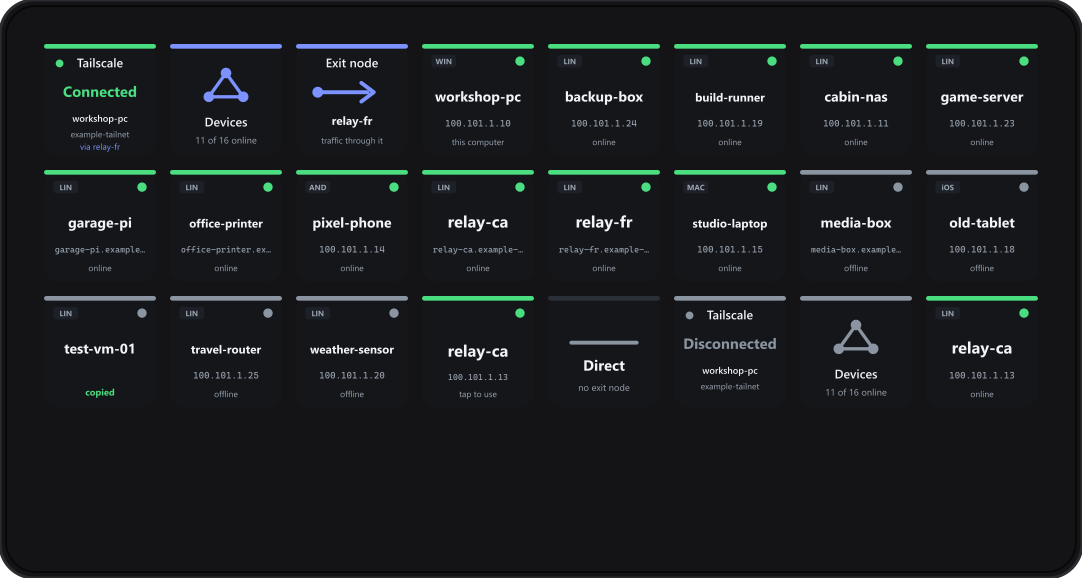
Four actions appear in the Tailscale Control category. Leave each key's title empty; the key draws its own text.
- Tailscale: connected or disconnected, this computer's name, the tailnet, and the exit node in use. A short press opens the devices page (or whatever you choose); a 2-second hold connects or disconnects. On a Stream Deck + it works as a dial.
- Devices: how many devices are online, and a press opens the page.
- Device: one device, chosen from a list read from your tailnet.
- Exit node: the exit node in use, or direct.
3. Copying an address
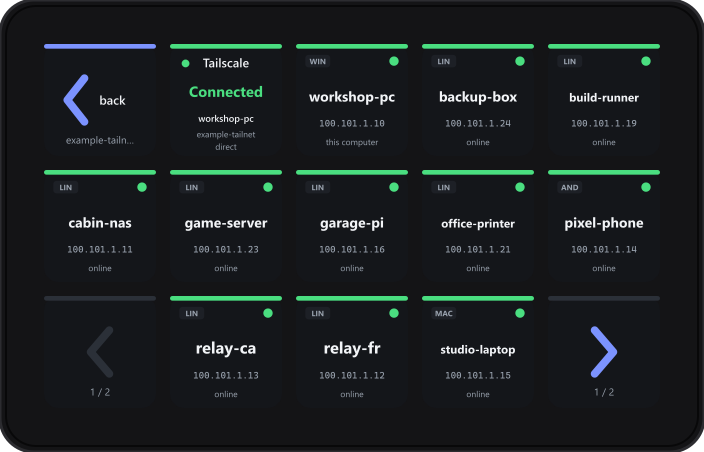
Press a device and its address goes straight to the clipboard, ready to paste into a terminal, a browser or a config file. The key flashes copied. Choose what a press copies, either for the whole page under Settings or per key on a Device key:
| Setting | What lands on the clipboard |
|---|---|
| The Tailscale IP address | Its 100.x address, the default |
| The full MagicDNS name | device.your-tailnet.ts.net |
| Just the device name | device |
| The IPv6 address | Its fd7a: address |
4. Exit nodes
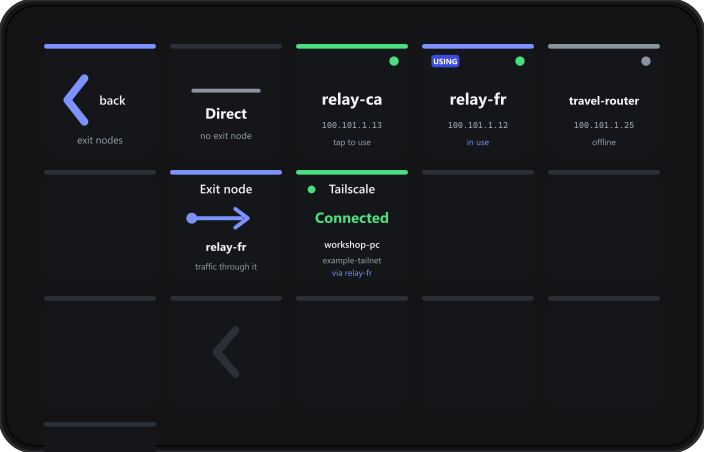
Press the Exit node key for the page above. Press a node to route through it, and Direct to go back to normal. The Tailscale key then reads via that node, so you can always see where your traffic is going.
Prefer one key for one node? Choose that node in the key's settings and it becomes a switch: press it to route through the node, press it again to go direct.
A device appears here only when it advertises itself as an exit node, with
tailscale set --advertise-exit-node on that machine, and an admin has approved it in the Tailscale
console.
5. Settings
Open any Tailscale key's settings and expand Settings. They are shared by every key.
| Setting | What it does |
|---|---|
| Refresh every | How often the keys read the client, from 2 to 60 seconds. The default is 5 |
| Device order | This computer, then online, then the rest; or plain alphabetical |
| Offline devices | Show them on the page, or leave them off |
| Devices page copies | What a press on the page copies |
| Hide devices | Names or patterns to leave out, for example old-*, spare-laptop |
| tailscale command | Leave empty and the plugin finds it. Set a path if you installed it somewhere unusual |
6. Connecting on Windows
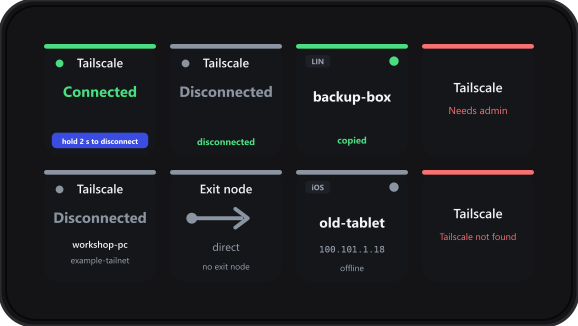
Connecting, disconnecting and switching exit nodes work as your usual account on a normal Windows install. Some setups only let an administrator change Tailscale's state; there, a hold answers Needs admin, and either running Stream Deck as an administrator or using the Tailscale tray icon settles it. Reading your tailnet and copying an address always work.
7. What it can and cannot see
- It runs the Tailscale client's own command on your computer, and nothing else: reading with
statusanddebug prefs, acting withup,downandset --exit-node. - It opens no network connection of its own, holds no key or password, and needs no account. Its tests fail if any network code appears in it.
- Its log records counts and states, never a device name, a tailnet or an address.
- Connecting and disconnecting need a 2-second hold; a short press only says what a hold would do.
Troubleshooting
| The key says | What it means |
|---|---|
| Tailscale not found | No tailscale command. Install the Tailscale client, or set its path in Settings |
| Client not running | The command is there but the Tailscale service is not answering. Start Tailscale |
| Not logged in | The client is signed out. Sign in from the Tailscale window |
| Log in needed / Approve device | Tailscale wants you in its own window, to sign in or to have the device approved |
| Needs admin | Windows refused the change. See Connecting on Windows |
| not on the tailnet | A Device key points at a device that has left. Pick it again |
| that node is offline | An exit node cannot be used while it is offline |
| No such exit node | That device no longer offers itself as an exit node |
| no page for this deck | The device has no keys to lay a page out on, such as a Stream Deck Pedal |
Frequently asked
Does it need an API key or a Tailscale account?
No. Everything comes from the client already signed in on your computer. The plugin never authenticates anywhere and never sends your tailnet to anyone.
Does it work on a Mac?
Not yet. The code has no Windows-only parts and macOS copying is already handled, but the Mac App Store build of Tailscale does not always install the command the plugin needs, so it is Windows only until that has been tried properly.
Can it turn my machine into an exit node?
Not in this version. It uses exit nodes rather than offering one; advertising is a decision worth making at the machine, not by a stray press.
Will a press disconnect me by accident?
No. Connecting and disconnecting need a 2-second hold, and a short press just tells you so.
Something is still wrong.
Email support@teatimeservers.ca with what the key says, and we will take a look.